For Professors
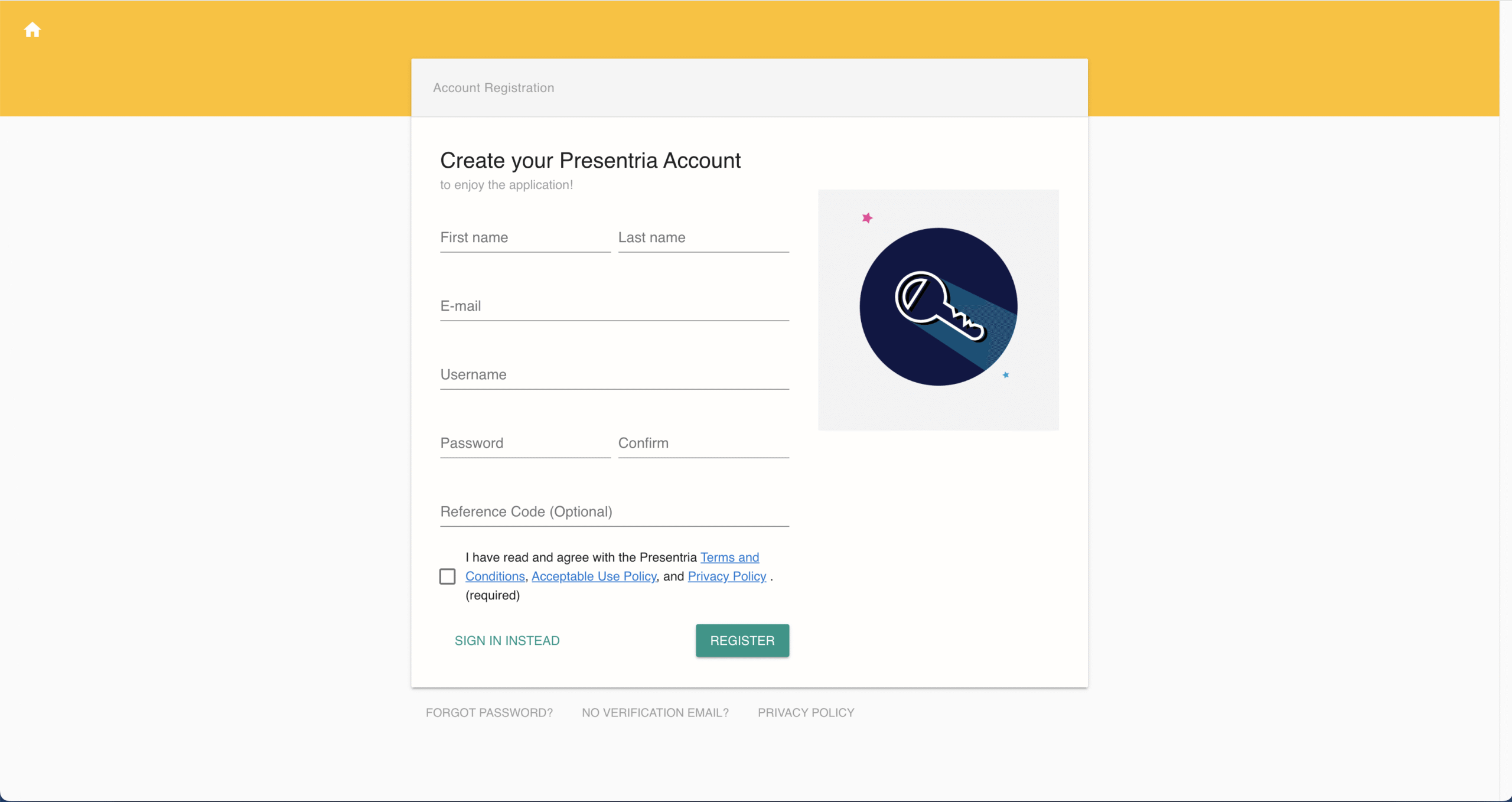
1. Get Your Presentria Account
- Sign up at https://www.presentria.com/web/.
- You’ll receive an activation email within 5 minutes.
- If you don’t see it, check your spam folder or contact us here.
2. Prepare Your Quiz Questions
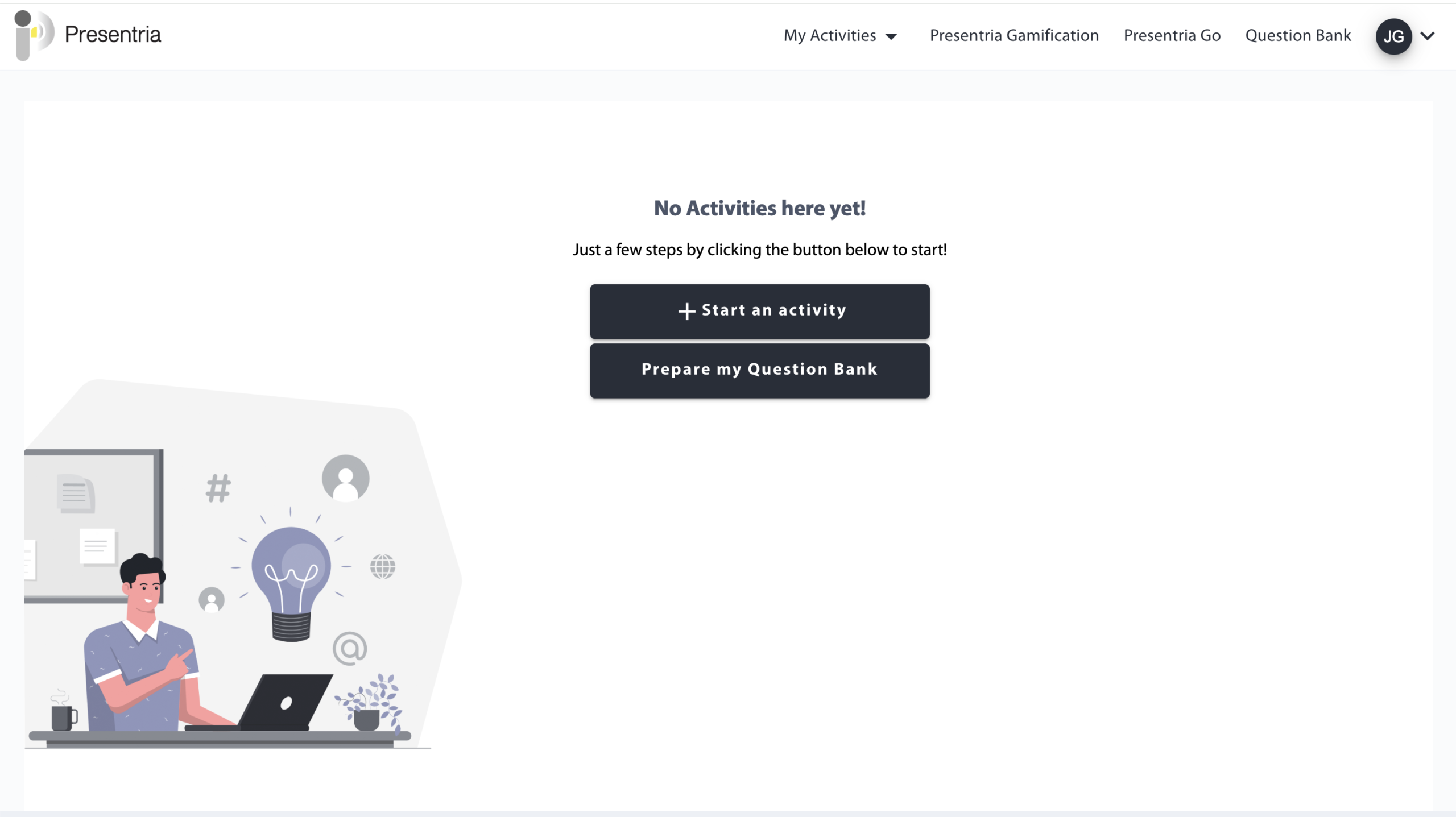
- Go to the Instructor Portal at https://presentria.com/teacher to log in.
- If the text is too small to read, adjust the font size by pressing the "command" key and "+" key on a Mac. If you use a Windows PC, press "Control" and "+" instead.
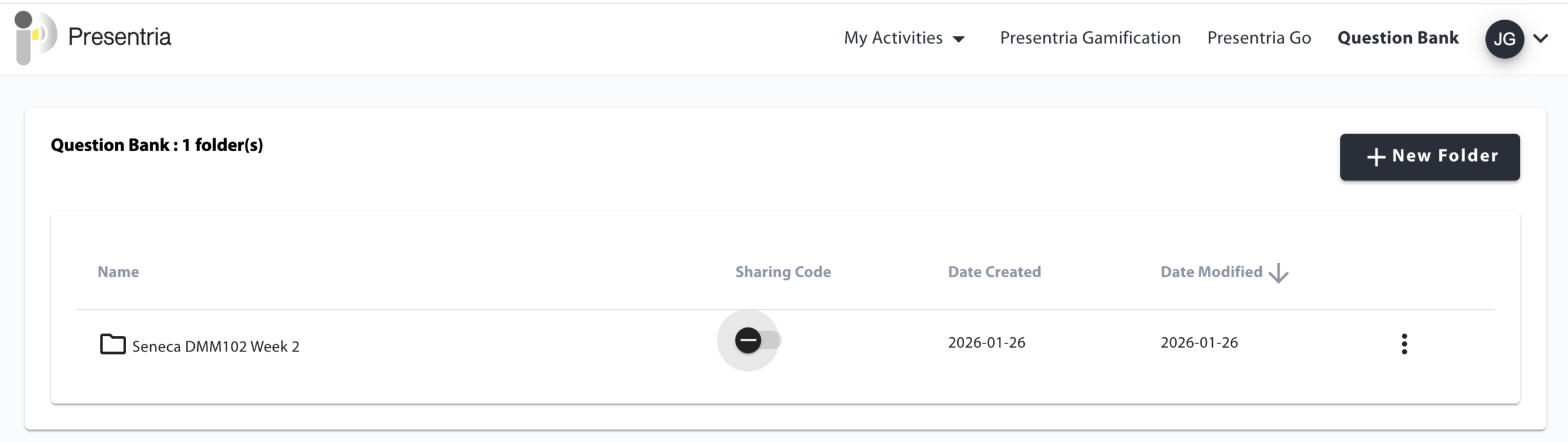
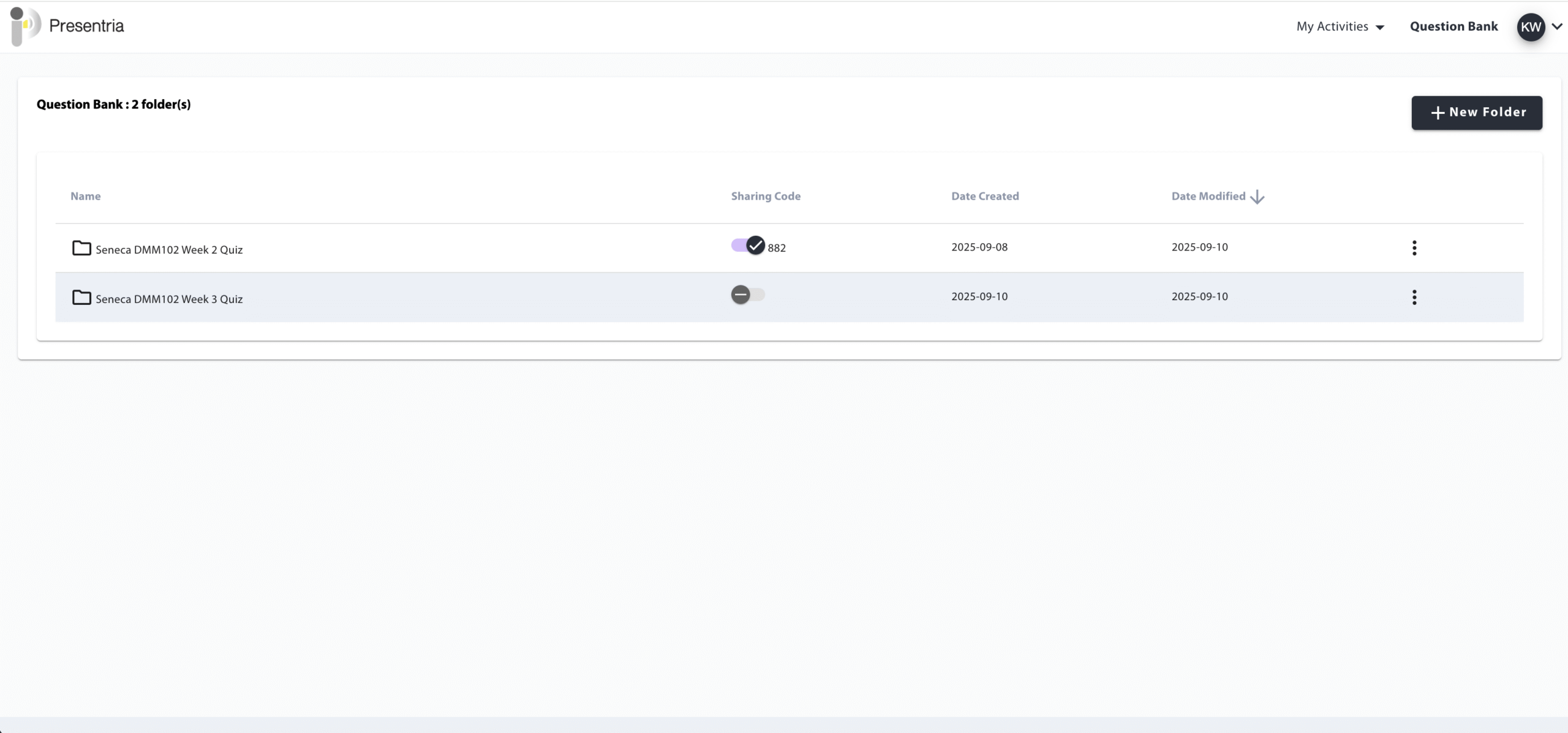
- Click Question Bank (top right).
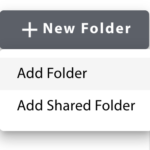
- Click + New Folder → Add Folder to create your set of quiz questions
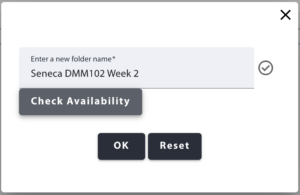
- Name your quiz (e.g., Seneca DMM102 Week 2), check Availability, and click OK.
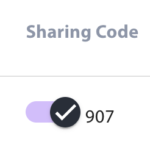
- Once a quiz is created, you can share this quiz with your colleagues by clicking the "Sharing Code" button. A number (e.g., 907) will be generated. Let your colleagues know of this number. When they create the quiz, ask them to select Add Shared Folder and enter your quiz number to copy the question set over. This function is particularly handy if a single course has multiple sections being taught by a group of professors.

3. Add Questions
- Under the Question Bank section, you can see all of the quizzes (folders) that you have created.
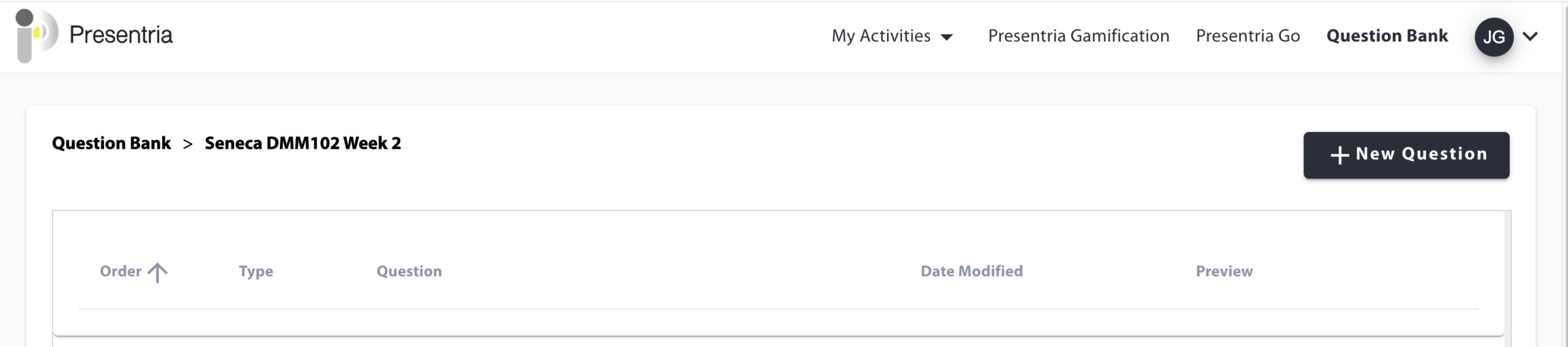
- Open your quiz and click + New Question.
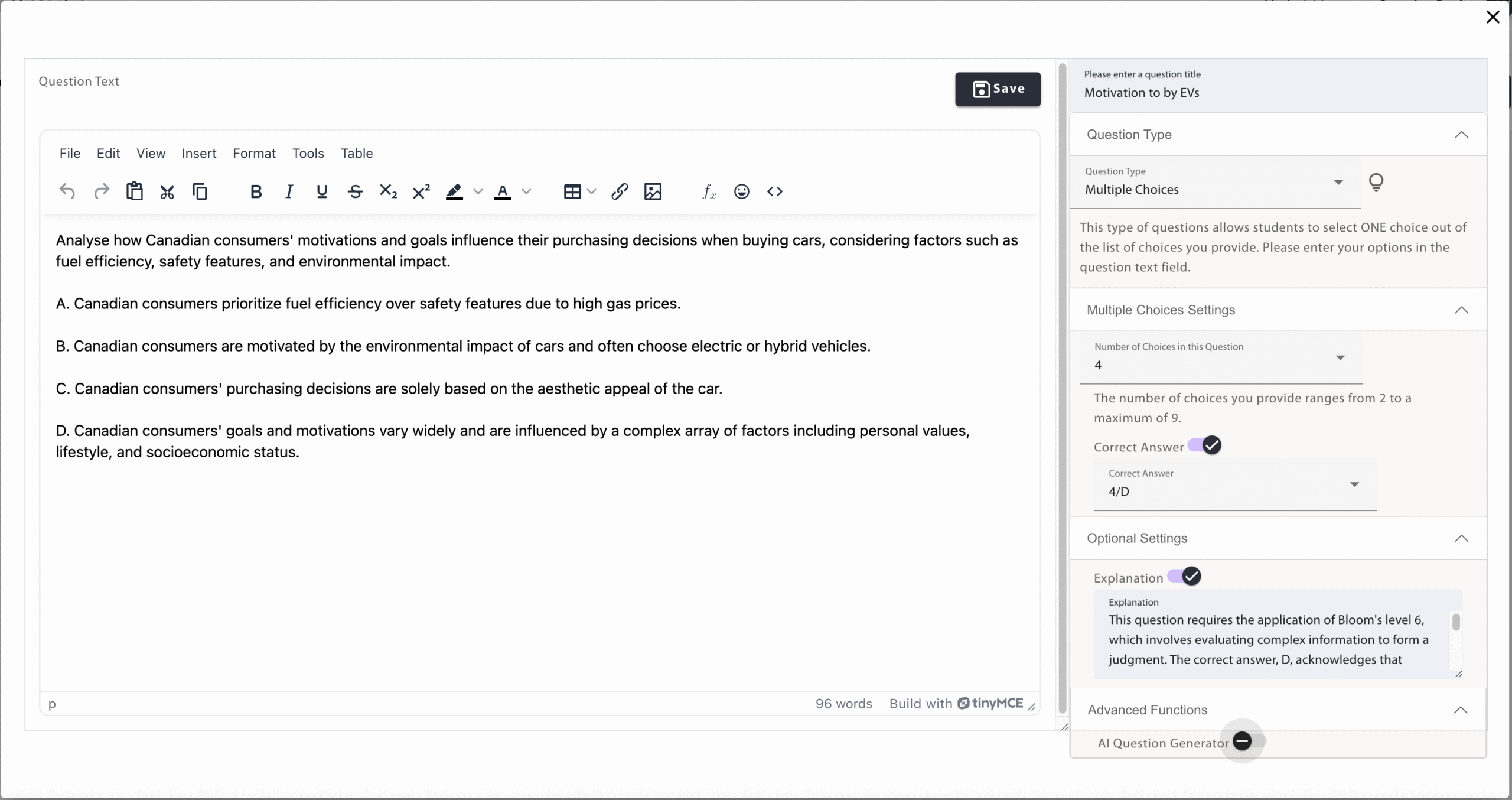
- Enter a question title in the upper right-hand corner (e.g., Q1. Purchase Motivation).
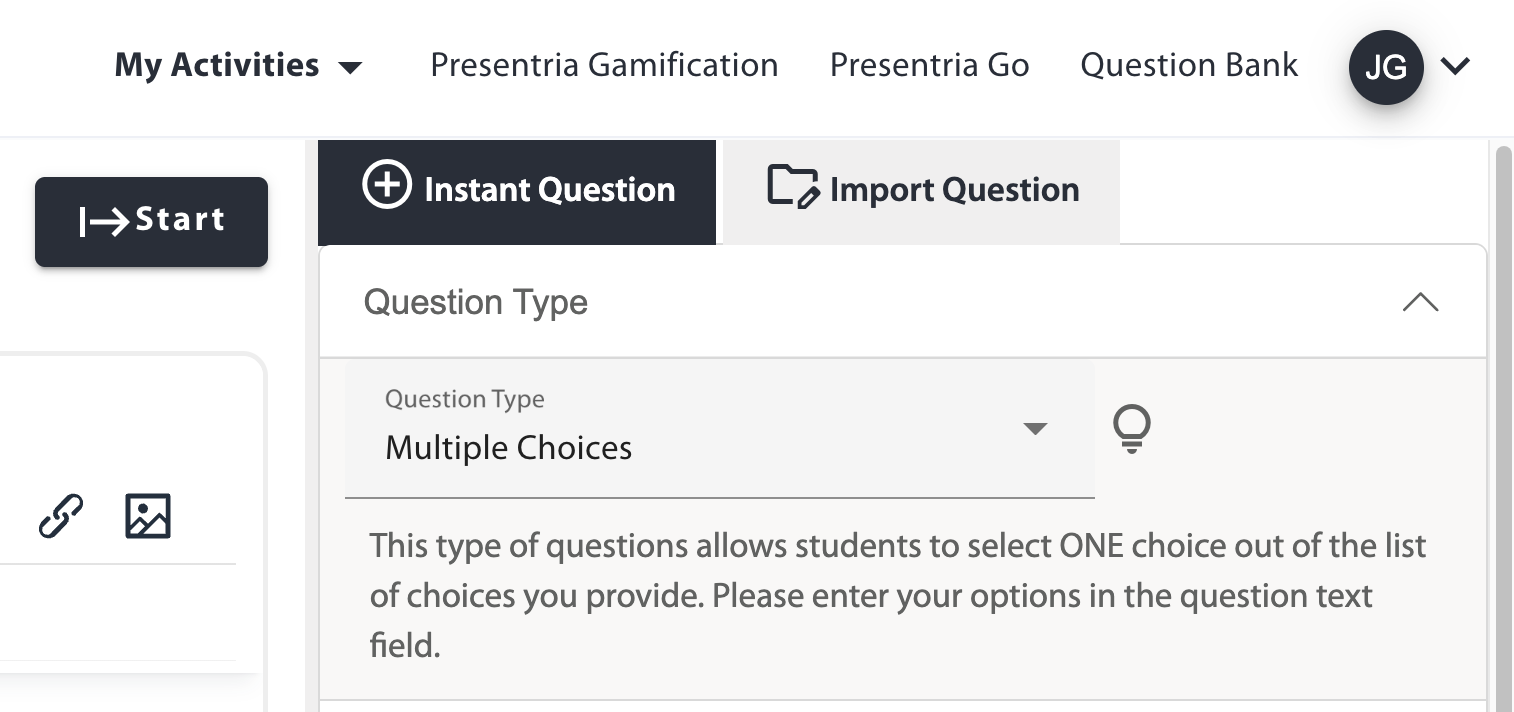
- Choose a question type (10 options, incl. Multiple Choice, Fill-in-the-Blanks, Likert Scale, File Upload, etc.).
- Adjust settings as needed.
- Optional: AI Question Generator
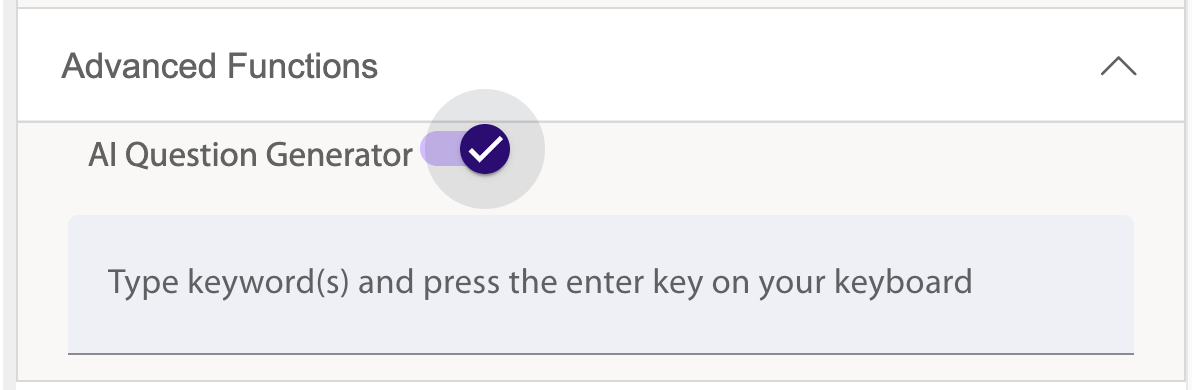
- Toggle it on, enter a prompt or keywords (e.g., Consumer Behaviour, Cars, Canadian, Bloom’s L5-6), then click Generate.
- Select from AI-generated questions with answers/explanations included.
- Click Save when done.

4. Launch Your Quiz
- Engage students in both webinars and in-class lectures with the Presentria Class Response System.
- Go to the Instructor Portal at https://presentria.com/teacher to log in right before your webinar or in-class lecture (Up to 1 hour before class starts to avoid timeout issues).
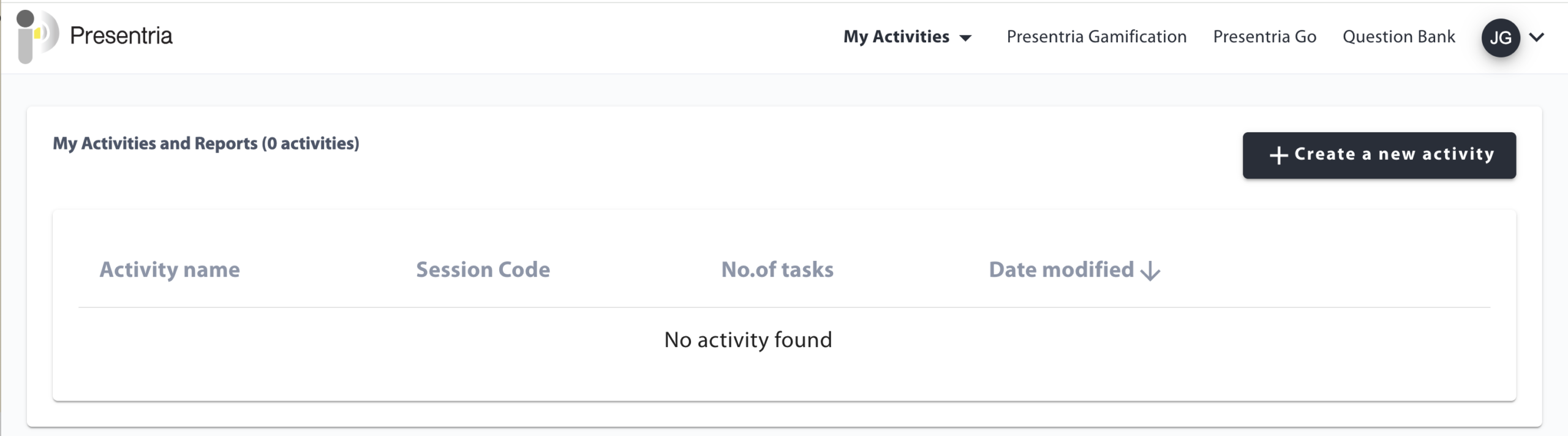
- Click + Create a new activity, name it (or use the default), then click Create.
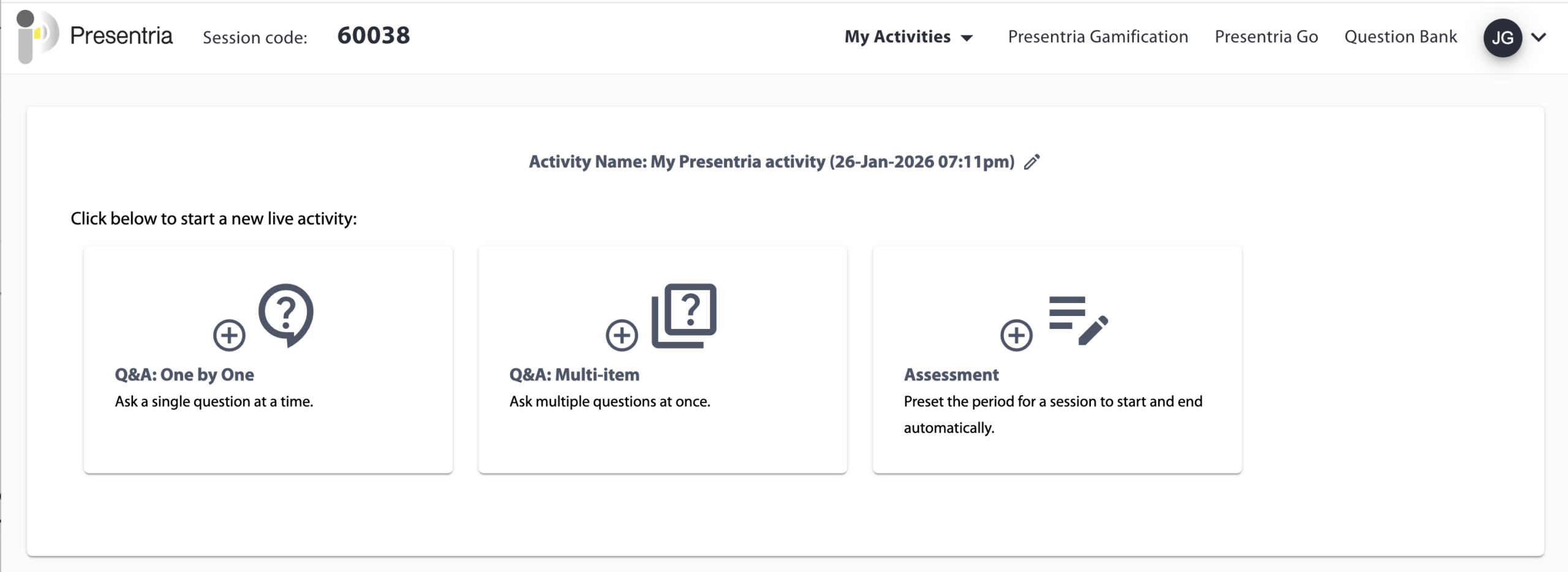
- Choose a mode:
- Q&A: One by One → Release questions one at a time.
- Q&A: Multi-item → Show all questions at once.
- Assessment → Preset the period for a session to start and end automatically
If you've selected "Q&A: One by One" to release questions one at a time, here's what you need to do:
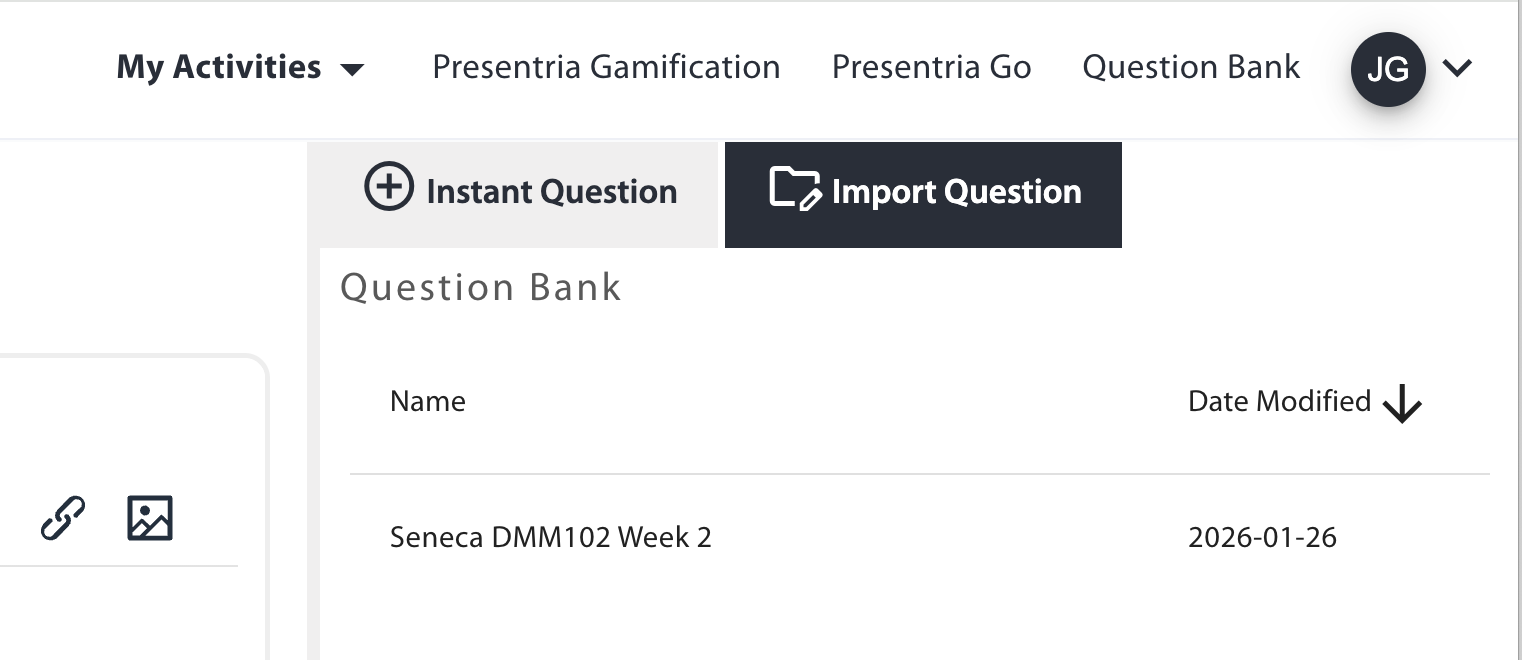
- Import questions (upper right-hand corner) from your bank or type them in under the "Instant Question" tab.
- Tips: 1. If you don't see your quizzes, just click the "Import Question" button again. 2. You can sort the quizzes alphabetically by clicking "Name" twice. You can also sort them by date by clicking "Date Modified".
- Select your quiz (e.g., Seneca DMM102 Week 2) to view your quiz questions.
- Click on the first question that you want to ask, then press Start.
- A session code + QR code will appear. Share with students.
- Once a question is done, press the End button. This will push the class results to the students' phones.
- Click Next to move to the next question.
- Remember to click Start to push this 2nd question to the students' devices.
- Use the same method to move through your questions.
- Optional: AI Question Generator: oDon't forget that you can make use of our AI function to generate questions on the fly under the "Instant Question" tab. To do it, just toggle the AI function to "ON", enter a prompt or keywords (e.g., Consumer Behaviour, Cars, Canadian, Bloom’s L5-6), then click Generate. Then, select your preferred AI-generated question(s).
If you've selected "Q&A: Multi-item" to show all questions at once, here's what you need to do:
- Select your question bank folder and press Start.
- A session code + QR code will appear. Share with students.
- All questions will be pushed to the students' devices at once, as in a typical multi-question quiz.
- Press the Previous or Next button to move through the questions and see results in real-time
 Don’t start a quiz in your office and bring your laptop to the classroom. Moving across another classroom network during an active session may cause connection issues.
If you've selected "Assessment" to preset the period for a session to start and end automatically, make sure you choose the local time/date.

5. Review Results
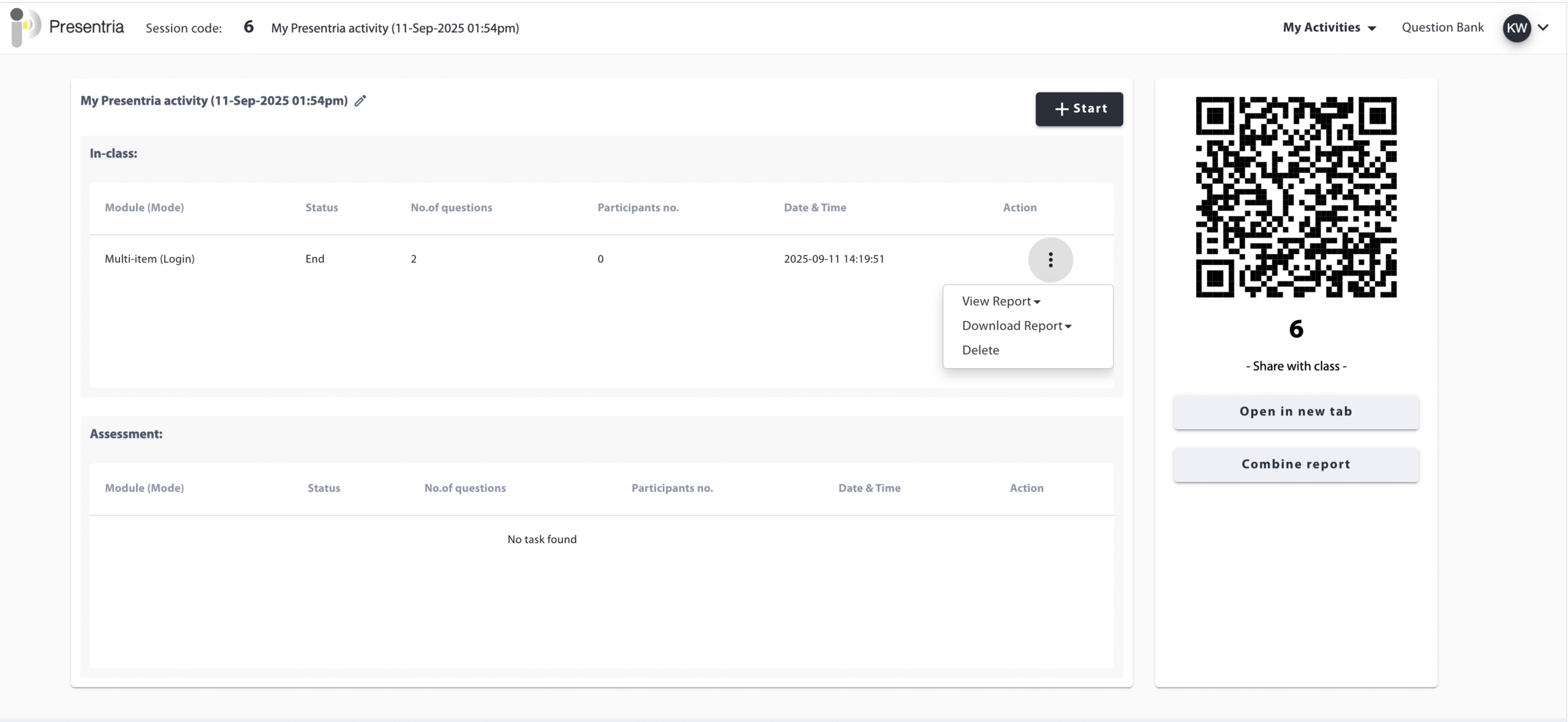
- Go to My Activities -> My Activities and Reports.
- Select your activity
- Open the 3-dot (kebab) menu for your activity module (e.g., Multi-item) and click Download Report.
6. Share a Quiz with Colleagues
- In Question Bank, turn on Sharing Code for your quiz.
- Share the 3–4 digit code with colleagues.
- They can create a new folder, choose Add Shared Folder, and enter the code to copy your quiz.
For Students
If you use a Smartphone:
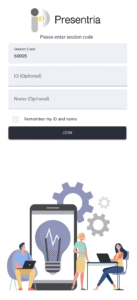
- Scan the QR Code given by your professor.
- Enter your student ID and name (optional).
- Press the "JOIN" button to start participating in the quiz.
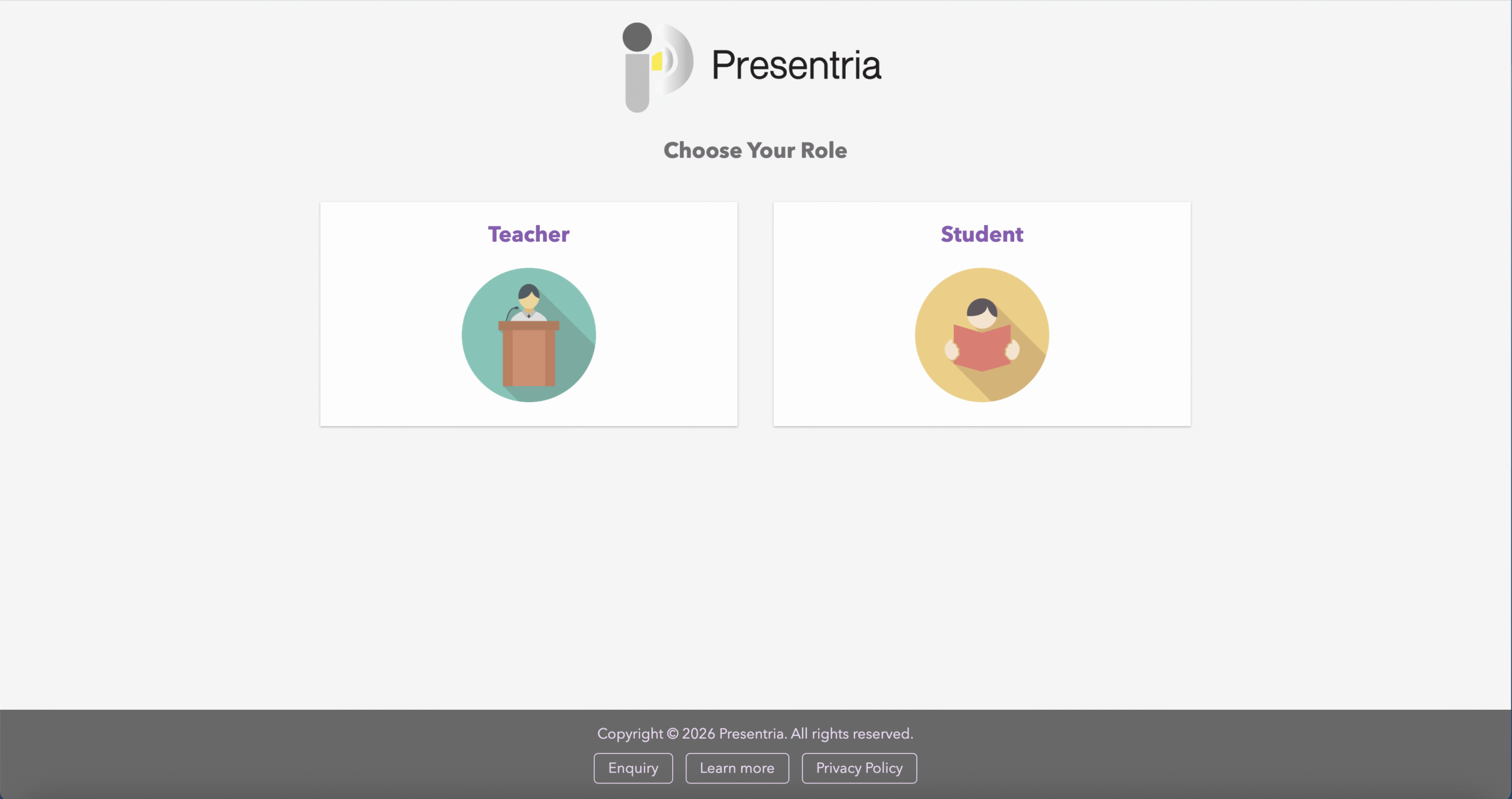
- Alternatively, you can open a browser (e.g., Chrome) on your phone, and visit https://presentria.com/student (or https://presentria.com and then click the student button)
- Enter the session code (required), student ID (optional) and name (optional).
- Press the "JOIN" button to start participating in the quiz.
If you use a Laptop or Tablet:
- Open a browser (e.g., Chrome) and visit https://presentria.com/student (or https://presentria.com and then click the student button)
- Enter the session code (e.g., 60005 in this example) given by your professor.
- Enter your student ID and name (optional).
- Press the "JOIN" button to start participating in the quiz.